C++ / MSVC / Visual Studio
C++ in Visual Studio,
one problem at a time.
Understand build errors, inspect project settings, and investigate native crashes. Find a diagnostic or follow a practical guide, with focused examples and official references.
Explore the reference
Start with the problem in front of you
Browse 36 diagnostic guides and practical C++ workflows, with worked examples and official references.
The CppPilot extension
Choose how to connect the AI
You only need one of these options. A CppPilot Cloud account is optional if you already use Codex or Claude.
Your Codex account
CppPilot runs the Codex CLI installed on your computer, using your existing sign-in and provider plan. Select Codex in AI CLI Settings.
No CppPilot subscription is required. AI chat is available with this option.
Your Claude account
CppPilot runs the Claude Code CLI installed on your computer, using your existing sign-in and provider plan. Select Claude in AI CLI Settings.
No CppPilot subscription is required. AI chat is available with this option.
Neither? CppPilot Cloud
Sign in with your email address. We provide AI access through CppPilot Cloud, so you do not need a separate Codex or Claude account. CppPilot sets up the required Codex CLI.
Free and Pro plans include an AI allowance for build fixes, reviews, crash analysis, and project checks. AI chat is not included. Cloud plans and limits.
What you can do in Visual Studio
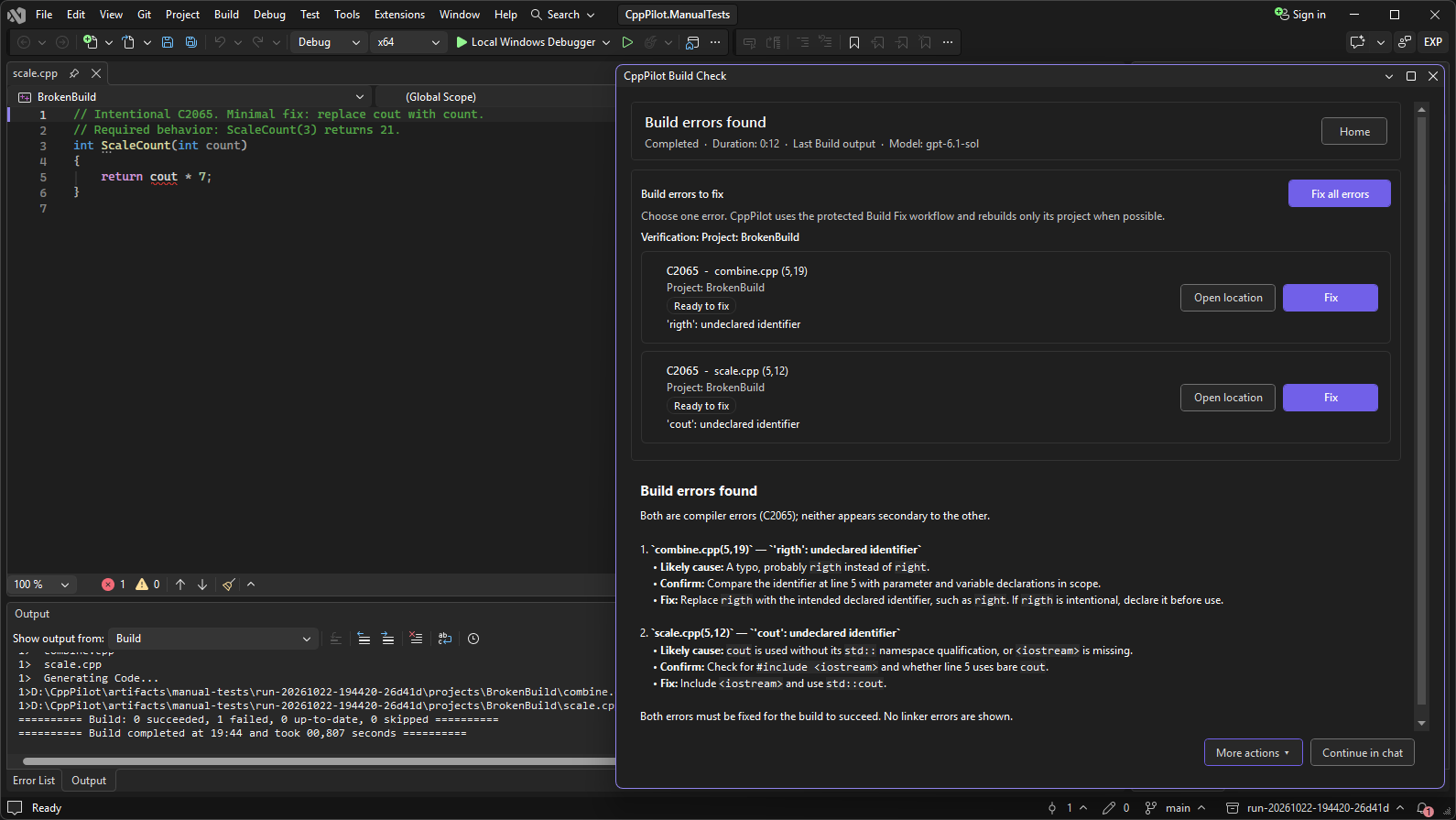
Understand and fix build errors
Open any compiler, linker, or MSBuild error, such as C2065, LNK2019, LNK2038, or MSB8020, from the Error List or the Build output. CppPilot asks the selected AI to explain the likely cause. Choose a fix for one error or a batch of errors; CppPilot rebuilds the relevant project to check which diagnostics remain.
Check Last Build Warnings uses the same workflow, with instructions to address the cause rather than disable the warning.
See the guides to common MSVC errors, such as LNK2019 and C1083.
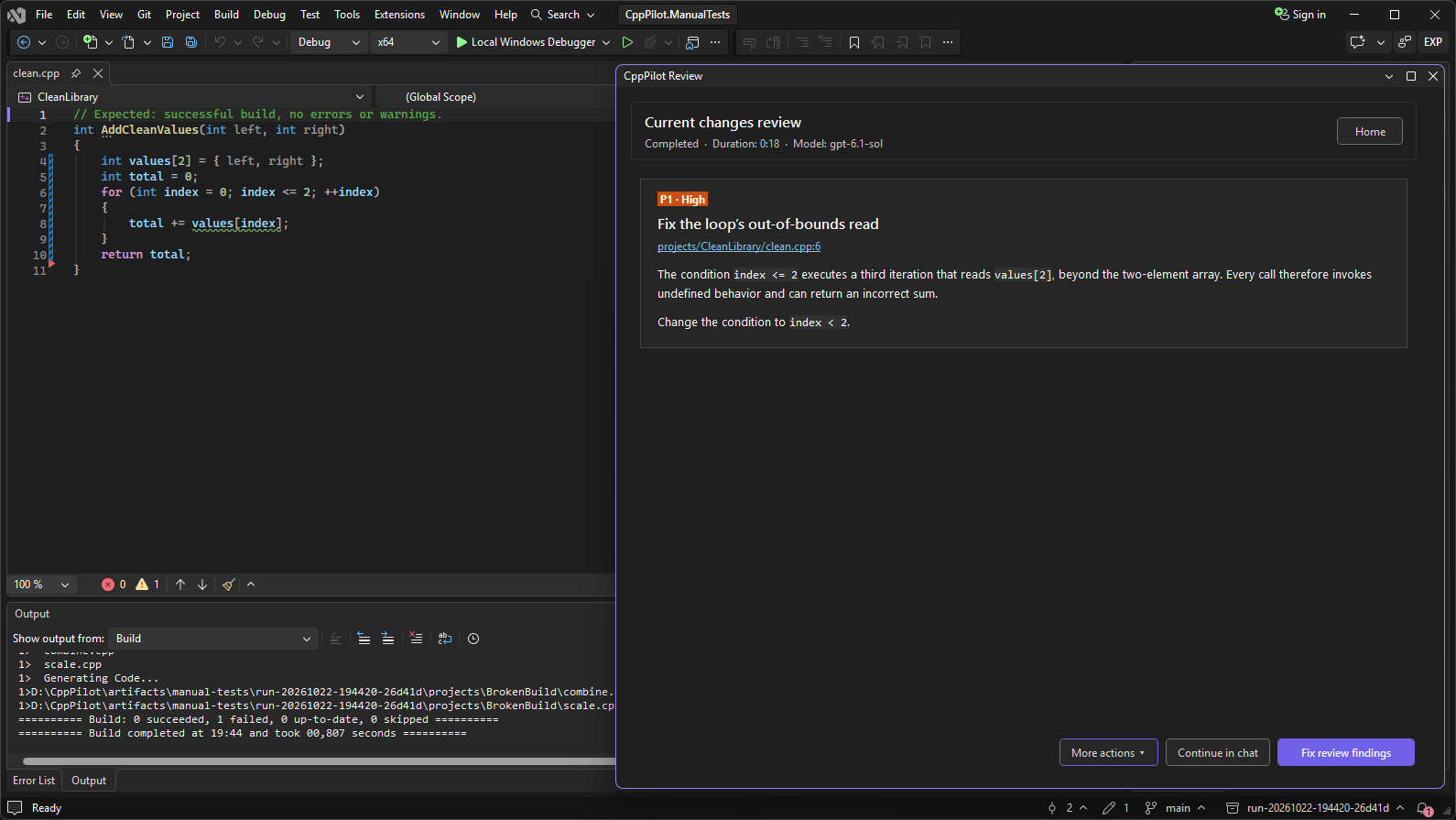
Review your changes before you commit
Start Review with CppPilot from the Git Changes window. Each finding comes with a priority, a clickable file and line, and an explanation; Fix review findings sends the ones you keep back to the AI for a focused correction. Review the current file, its changes, or a whole branch against its parent.
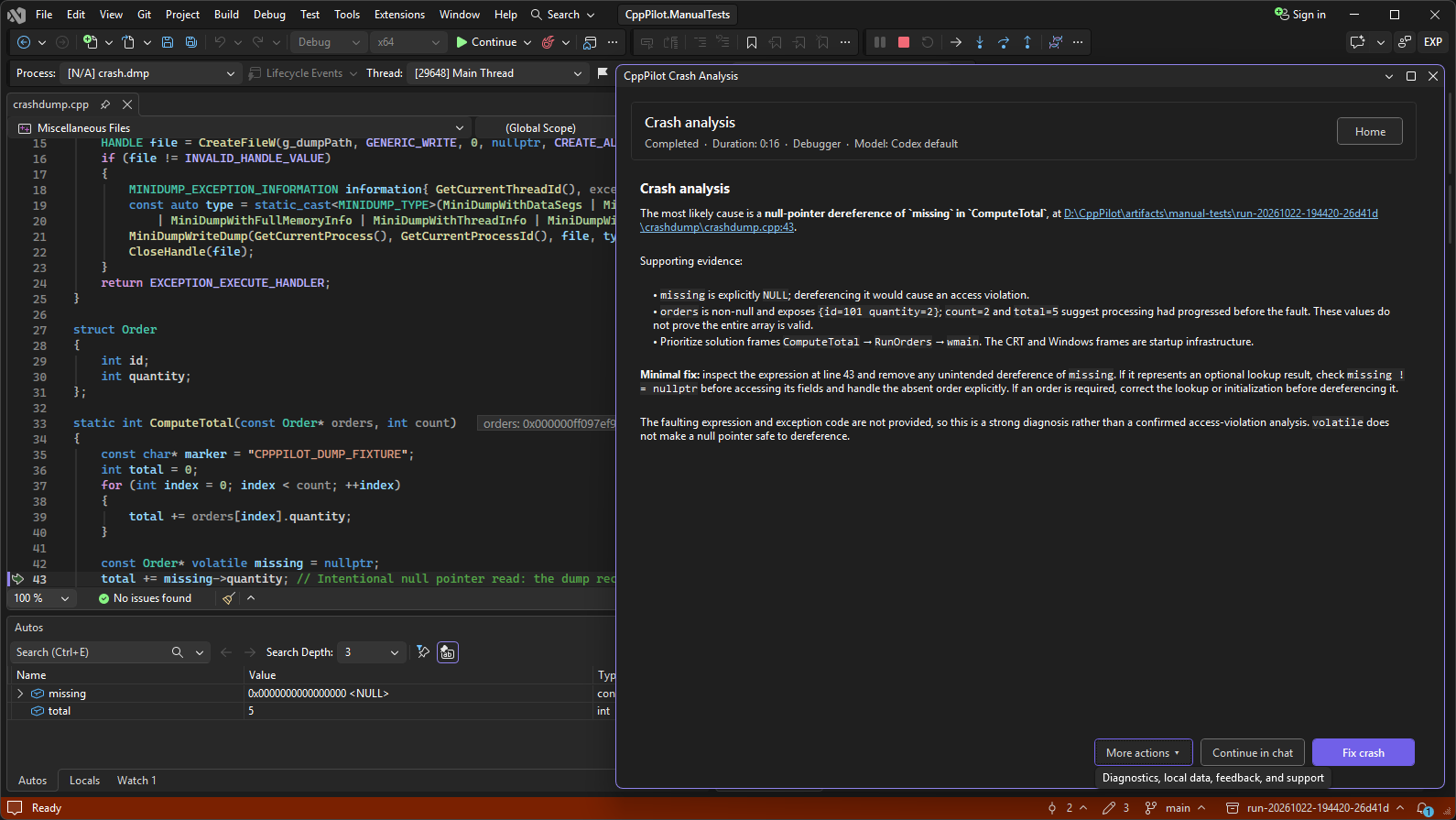
Understand native crashes and dumps
When the debugger breaks on an exception, an assertion, or a debug break, CppPilot reads the call stack, arguments, and local
variables and explains the likely root cause. Choose Analyze Crash Dump... to do the same on a .dmp
file with its symbols.
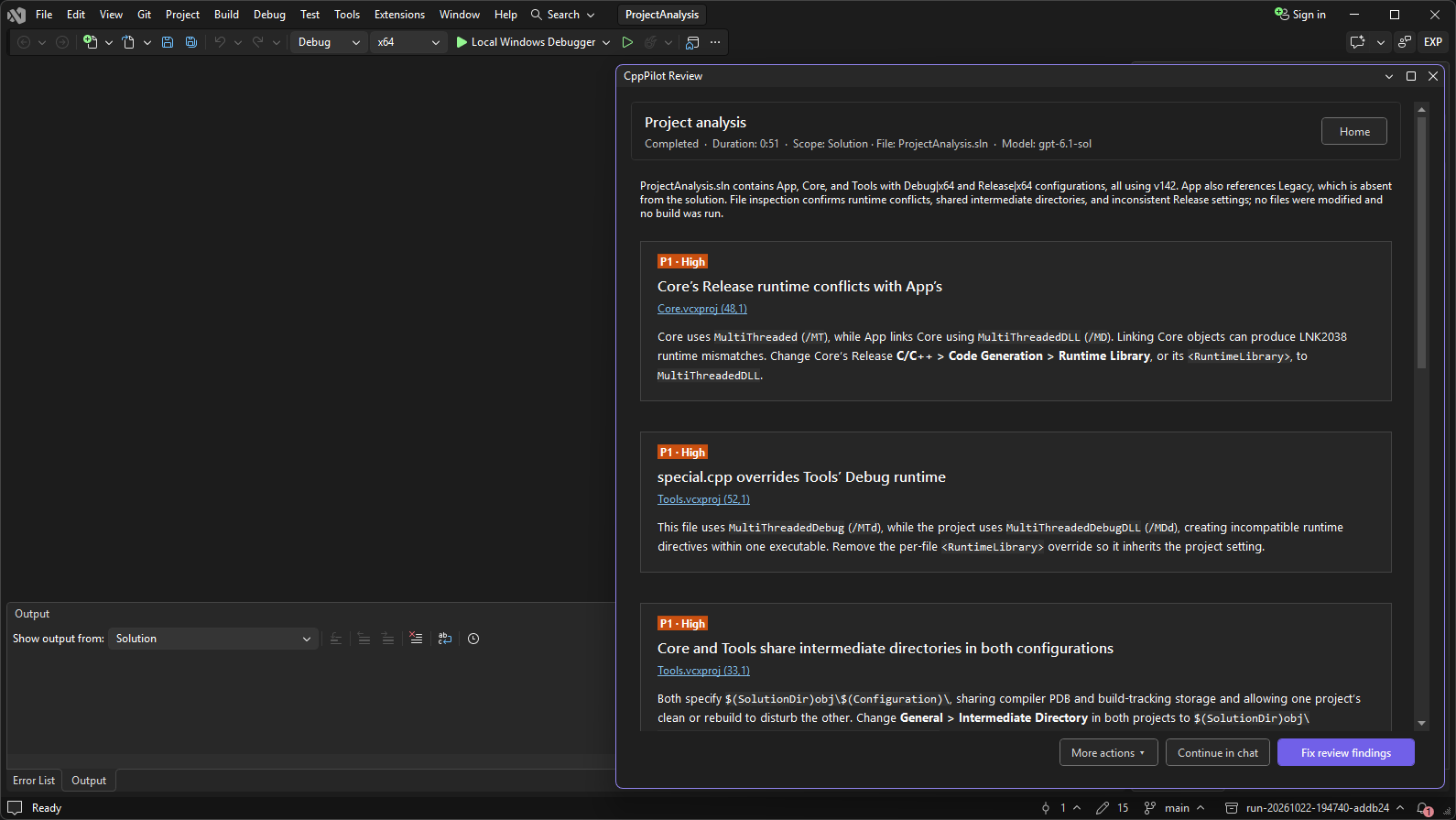
Check your build settings
Right-click a solution or a project to find inconsistent, slow, or outdated settings: mismatched runtime libraries (LNK2038), shared intermediate directories, include directories that drop inherited values, no parallel compilation, old toolsets. Each finding points to the property or line to change, as Visual Studio evaluates it, property sheets included.
Editor and debugger integration
Debug with Codex or Claude
With your own Codex or Claude account, while your program is paused, the AI can read variables and expressions, list the threads and the loaded modules with their symbols, and, after your approval, set breakpoints and step through the code.
Your code as you see it
The AI reads your code as it is in the editor, unsaved changes included, knows your project's include paths and settings, and opens the files it talks about at the right line.
A chat in your IDE
Explain a selection, continue any result in a conversation, drag files from Solution Explorer, and answer the AI's questions while it works. Available with your own Codex or Claude account.
Review requested actions
Every command or file change the AI asks for appears in Visual Studio: allow it once, for the operation, for the repository, or deny it. Every operation can be cancelled.
Where your code goes
With your own account, the selected CLI sends the code and context needed for an action to OpenAI or Anthropic. With CppPilot Cloud, requests pass through our service to OpenAI; their content is not stored or logged by CppPilot Cloud. The extension has no telemetry. See the privacy policy.
Questions
Do I need both Codex and Claude?
No. Choose either Codex or Claude Code with your own account. If you have neither, CppPilot Cloud provides AI access through an email sign-in, without a separate Codex or Claude account. See how to set up each option.
Is CppPilot free?
The extension is free. With your own Codex or Claude account, no CppPilot subscription is required; your provider's terms and usage limits apply. If you have neither account, CppPilot Cloud offers Free and Pro plans with different AI allowances. See the plans.
Which versions of Visual Studio are supported?
Visual Studio 2022 and later, including Visual Studio 2026, with the MSVC C++ build tools. A separate package is available for Visual Studio 2019. Git is needed for the review features.
Does CppPilot change my code without asking?
No. Explanations, reviews, and analyses never change a file. A fix starts only when you choose it, and every command, file change, build, breakpoint, or debugger step the AI asks for appears in Visual Studio for your approval.
Which AI model answers?
With your own account, the Codex or Claude model you choose in CppPilot. With CppPilot Cloud, an OpenAI model configured by the service: the free plan uses light reasoning, and Pro uses a higher reasoning effort.
What happens to my code?
The extension has no telemetry. With your own account, the code and context an action needs are sent by the Codex or Claude CLI to OpenAI or Anthropic, without passing through CppPilot Cloud. With Cloud, requests are relayed by our service to OpenAI without their content being stored or logged. See the privacy policy.
Is the AI chat included in CppPilot Cloud?
Not in the free and Pro plans: they cover build fixes, reviews, crash analysis, and project checks. The chat remains available with your own Codex or Claude account.
CppPilot is an independent project. It is not an official Microsoft, OpenAI, or Anthropic product.