CppPilot feature Visual Studio C++
Fix build errors with AI
CppPilot reads each compiler, linker, or MSBuild error with your code and the project settings Visual Studio evaluates, explains its likely cause, and lets you request corrections. Rebuilds show whether each correction resolved the diagnostic.
Transcript
Five build errors, fixed in one pass by CppPilot in Visual Studio. Library fails to build with five errors of three kinds: C2039, C2065, and C3861.
Select an error in the Error List, and click Fix with CppPilot. Each error becomes a card, with Open location and Fix.
Click Fix all errors. The AI reads the code with the project settings, and corrects the causes: push_back, the <iostream> include, and a declaration of Count before main.
CppPilot rebuilds the project to check the fixes: every card is resolved. Build the solution: no error is left.
CppPilot explains and fixes C++ build errors in Visual Studio.
- ReadDiagnostic + project context
- ExplainLikely cause
- ReviewRequested correction
- RebuildCheck the result
An explanation does not change files. Request a fix, review the requested actions, then use the rebuild to check which diagnostics remain.
From the Error List or the Build output
Right-click an error in the Error List and choose Fix with CppPilot, or choose Extensions >
CppPilot > Check Last Build Errors after a failed build. Each error appears as a card with its explanation,
Open location, and Fix. Compiler (Cxxxx), linker (LNKxxxx), and
MSBuild (MSBxxxx) errors are supported, with clickable source, project, props, and targets locations.
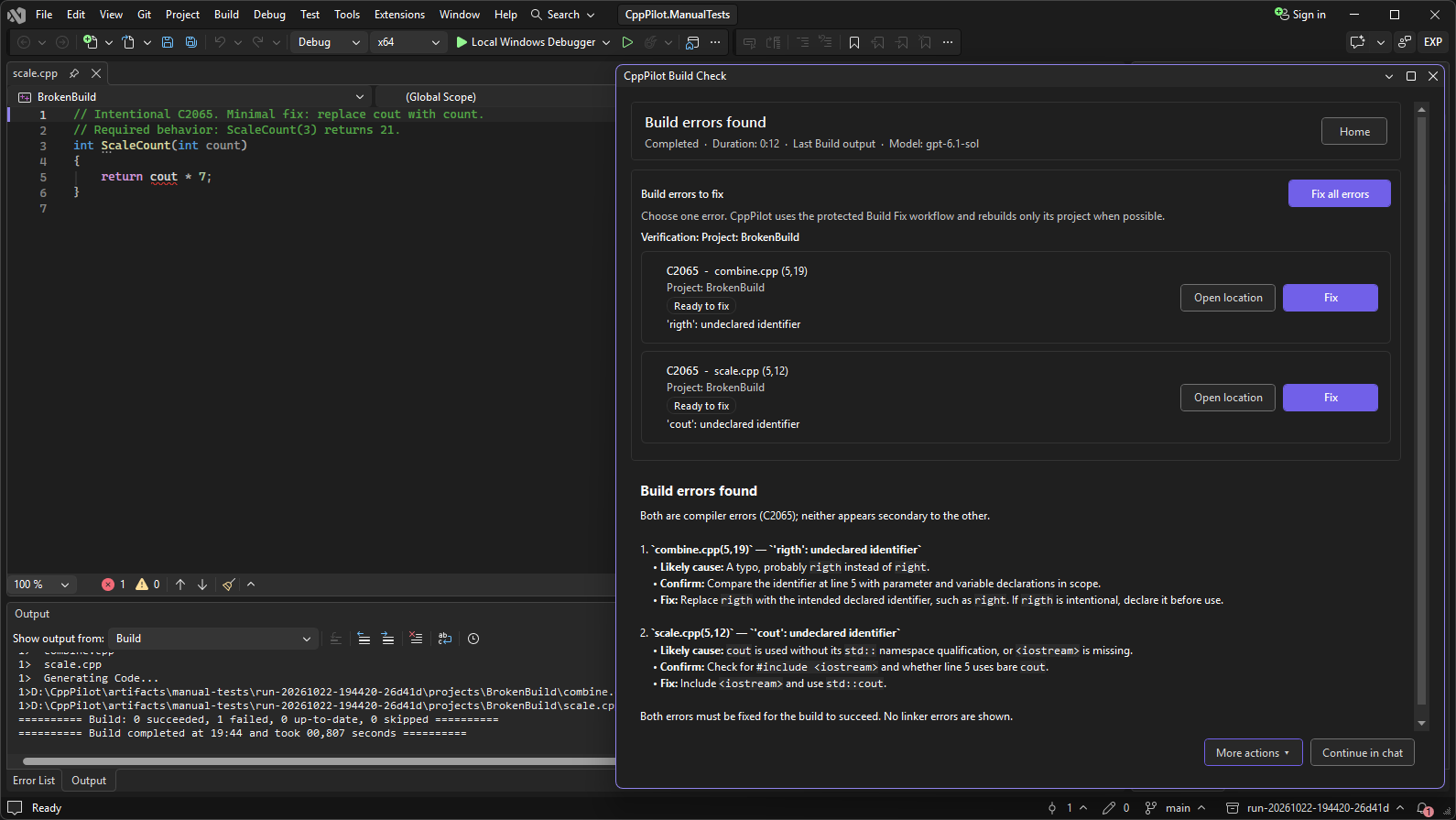
Request fixes and check the result
Fix all errors asks the AI to work through the errors in several passes. After each fix, CppPilot rebuilds the C++ project concerned and follows every error through its states: ready, correcting, verifying, resolved, or still present. A fix that does not remove the error is visible at once.
C2065 — undeclared identifier
int count = 3;int result = Count;Proposed correction
int count = 3;int result = count;Review and correct warnings
Check Last Build Warnings shows one card per warning, with Fix and Fix all warnings. The AI is instructed to correct the underlying issue, such as a narrowing conversion or an unsafe call, without disabling the warning, and each fix is verified by rebuilding.
Project context sent to the AI
Linker errors often come from settings, not code. CppPilot gives the AI the include directories, preprocessor definitions, C++ standard, runtime library, and linked libraries of the project, as Visual Studio evaluates them for the active configuration, property sheets included. This context helps it investigate a missing library or a mismatched signature in LNK2019, or which project uses another runtime in LNK2038.
Diagnostic context
LNK2038: mismatch detected for RuntimeLibraryApp links Core.libProject settings to compare
App | Release | x64: /MDCore | Release | x64: /MT// A compatible runtime choice is needed.You approve every change
Every file change, command, or build the AI asks for appears in Visual Studio: allow it once, for the operation, for the repository, or deny it. Every operation can be cancelled.
Using CppPilot in Visual Studio
CppPilot connects your own Codex or Claude account to Visual Studio. If you have neither, CppPilot Cloud provides AI access for build fixes, reviews, crash analysis, and project checks. AI chat requires your own Codex or Claude account.